BYOD Begins With Trust and Respect

I have written extensively over the past couple of years about our Bring Your Own Device (BYOD) initiative at New Milford High School at the Huffington Post and on my own blog.  It has been interesting to look back at all my blog posts to see how far we have come with BYOD at NMHS.  My first ever post on the topic just provided a small glimpse at the possibilities inherent when students are empowered to use the technology that they already posses to enhance their learning experience.


Image credit: http://www.securedgenetworks.com/secure-edge-networks-blog/bid/81148/4-Myths-of-BYOD-on-Enterprise-Wireless-Networks-Debunked

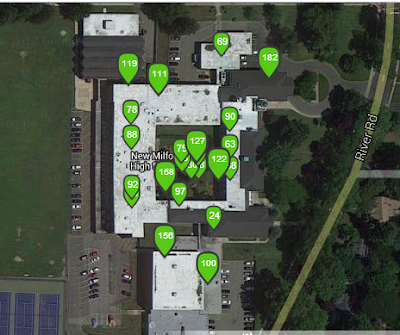
It was our desire and quest to create a school culture and learning environments that were more reminiscent of the real world that our learners would soon be a part of that drove change in this area. When I reflect upon how the program has evolved into its current state I cannot help but to think about the most important change that was made recently.  It was during the summer that Ron Watson, the NM District IT Director, and I met to discuss the future of BYOD at NMHS. Up until this point we had students sign off on a paper guideline sheet after which I created a username and password for them to access the secure guest network.  This information was then passed on to Ron and each student that filled out the form was granted access.  There is no doubt in my mind that this process limited the amount of students who opted to bring their own mobile learning devices to school. I cant thank Ron enough for putting students first! Speaking of Ron, he just informed me that we had 460 unique devices connect to our guest Internet network yesterday (535 for the week) at my school. This is fairly significant as we only have 650 students and 53 staff members.  Take a look at the traffic at each access point below.


After critically analyzing our process and the culture of NMHS it was decided to change how we went about allowing students to access the Internet.  We decided to trash the old process reliant on paper and emails by replacing it with a seamless alternative that empowered students to want to bring their mobile devices to school.  This week I revealed these changes to our students.  While encouraging them to bring in their tools I explained that they could now access the Internet immediately with their current passwords and usernames that they have used to log onto school computers during their entire NMHS careers.  All they had to do now was bring in their device, select the guest network, enter their username/password, and check the box to agree to the terms of use. Then wallah, they would be connected to the Internet. Below is the terms that each student now has to agree to in order to access the Internet:


NMHS students and parents/guardians fully acknowledge that use of a personal device on the premises of New Milford High School is subject to all guidelines, rules and regulations governing acceptable use as established by the New Milford Public Schools Board of Education, Policy #2361 and Regulation R2361.  It is further understood that use of a personal device is restricted to those activities as required or related to the students program of study and any use otherwise may be subject to disciplinary action including loss of device use privileges. Students WILL NOT access websites with inappropriate content using a 3G or 4G connection. Students and parents understand/agree that New Milford High School is NOT responsible for any damage or theft that may occur to the laptop while on school property. 
By logging into the New Milford wireless network, they are accepting the terms of the New Milford Student Responsible Use Guidelines. Once on the New Milford wireless network all users will have filtered Internet access just as they would on a district-owned device. 

Our BYOD initiative at NMHS has succeeded and grown up to this point based on the basic premise of trust and respect.  Yes, we have policies in place, the right infrastructure, and support our teachers with professional development and guidance. However, the most important elements stem from the fact that we trust our students to use their devices as tools for learning, enhanced productivity, and to conduct better research.  Time is spent working with them on digital citizenship and the creation of positive digital footprints that they can be proud of.  We also respect them as learners growing up in the digital age where these tools are playing a greater role in the world we are preparing them to succeed in.  When creating a BYOD initiative grounded in these principles the possibilities are endless.

What do you think are the keys to a successful BYOD initiative?
Read More..

Perform Handwritten Mathematical Calculations on your iPhone with MyScript Calculator

Ever wished you could use your iPhone or iPad to do advanced calculations just as you might on a piece of paper, but have the device do the calculations for you instead? If so then check out MyScript Calculator, a free iOS app which can perform all of this in a new way right on the device using your handwriting.

Rather than tapping on different digits on your calculator app, you can now just write the equation you want to solve and leave the rest to MyScript Calculator. It will recognize the text on the screen and will display the result within seconds.

The application supports many different mathematical operations (e.g. basic operations such as powers, exponentials, brackets, trigonometric ratios, logarithms, as well as advanced functions such as trigonometric ratios, long calculations and more.)

Usage

Using the application is pretty simple and straightforward. Once installed, just launch the app and you will be presented with a simple drawing board like screen where you can write the equation you want MyScript Calculator to solve. Note that you may come across errors if you are not writing the numbers clearly. Also note that it will keep on performing calculations to the existing equation until and unless you clear the board using the delete button.
myScriptCalculator 7
In case you write a wrong equation, you can erase that part and re-enter the values. If it doesn’t recognize your equation, it will show display a question mark to prompt you to rewrite. The result can later be emailed to any recipient, shared on Twitter or copied to notes or any other application. If you want, you can also customize the number of decimals, show deg/rad and other details.

In Conclusion

MyScript Calculator is a very handy calculator application that allows users to perform calculations using handwriting. It may not be for everyone, but those who need it will love the app.
Although writing long expressions on your iPhone may at times be problematic, the app works very well . The usability of the app is best on the iPad because of a larger display. It is not perfect when recognizing the text but it does an admirable job.
Check out the app and let us know what you think
Download MyScript Calculator (iOS).
Perform Handwritten Mathematical Calculations on your iPhone, with MyScript Calculator

Read More..

Replace Android icons with large custom images with ‘Desktop Visualizer’

One thing I learned from publishing this site is how much some users LOVE to customize the look-and-feel of their computers and devices. If you want a neat way to customize your Android then consider this one: replacing your icons with glorious, artfully crafted images to launch your apps or make calls.
‘Desktop Visualizer’ is a free Android app that can create Android Widgets to launch all sorts of actions, such as launch an app, open a URL, or make a phone call or text message a specific contact. The best part, though, is that these widgets can display any image that you like in a wide variety of sizes, and can be custom labeled in any way you like. It is a bit labor intensive to set up, but it opens the doors to customizing your Android in many very unique and creative ways (see screenshots below).
Desktop Visualizer screenshot1Desktop Visualizer Screenshot2

The examples in the screenshots above show widgets that, in the left screenshot, allow me to make phone calls to some frequently used contacts just by clicking their image, and in the right can launch some game apps.

How to use:

First off, create a widget in the normal way, then select a ‘Desktop Visualizer’ widget in the size that you want. The program deserves credit for the wide range of widget sizes from large to small (see screenshot below). It is quite helpful if you use a launcher that will let you resize widgets (I use Nova Launcher), otherwise the onus becomes greater to get the widget size right from the get go. Or you can install a free add-on called DVRSizeConfig that will help you measure the proper widget size (link at the bottom of the post).
Desktop Visualizer Screenshot4 - select widget size
Next, select the image you want to use and the action associated with it. Transparent areas in image files such as PNG are supported and will display as transparent. The label can be skipped if you like, or customized as you wish. Possible actions are shown in the right screenshot below. If you want your widget to make a direct phone call select ‘other’ and then ‘direct call’. Note that if you want a widget which can make a direct call, you need to install an additional add-on from the Google Play store (see download links below).
Desktop Visualizer Screenshot5 - settingsDesktop Visualizer Screenshot6 - actions

Desktop Visualizer Screenshot3Note on images:

The best effect can be had by using interesting, customized images that you may have to work on manually using am image editor program or a program that can apply effects. As an example on such variations, see the screenshot to the right, which shows images tweaked to look like sketches, just to create a unique look and feel that you can impress people with.

The verdict:

A very nice app that opens many possibilities for those who like to customize their interface in many creative ways. It is somewhat labor intensive if you want to create many different widgets, as each has to be created on its own, but the result can be worth it.
Although the program is ad-supported, you only see the ads in the settings page, so once you have your widgets set-up that’s the end of it.
This program can be improved if it allowed for image cropping within the program itself (which I believe is available as a paid add-on). Also, I wish there was even larger widgets supported, including an all page widget. It made me think of the opportunity to create a similar app whereby a single widget might contain several images that trigger different actions each, and that can be easily resized or manipulated from within the program.
  • You can get Desktop Visualizer here.
  • If you want the option to make direct calls from your widgets, you will also need to install a free add-on called DVRDirectCall.
  • You can also get DVRSizeConfigTool, a free add on supposed to help get the appropriate sized widgets for your screen (we have NOT tested this one).
Replace Android icons with large custom images, with ‘Desktop Visualizer’
Read More..

The Power of Video

Students in Mrs. Tambuscio’s World History class culminated a unit on the Holocaust by applying their historical knowledge to the viewing of survivor testimonies.  Students were able to utilize IWitness,  which is a computer-based program created by the USC Shoah Foundation’s Institute for Visual History. This educational tool includes over 1,200 video testimonies of Holocaust and genocide survivors. The program incorporates multimedia activities and digital resources, which allow students to engage in active learning.  

The learning connects students to the past, engages them in the present, and motivates them to build a better future.  The students were able to learn particular aspects of a survivor’s story, record reflections, and actually create a video utilizing testimony clips and artifacts to tell their impression of a particular survivor’s story.  Using the website, students build the video project into the site, which allows access to each participant, as well as the teacher.  As a result, the classroom teacher and students can comment on each project, which creates a vibrant discourse about students work and each survivor.  

In September of 2013, interested New Milford High School students will have an opportunity to participate in the IWitness Challenge during the 20th Anniversary of Steven Spielberg’s Oscar winning film, Schindler’s List, through the USC Shoah Foundation. The Institute for Visual History and Education is sponsoring the IWitness Video Challenge. The Institute has invited students from all over North America to be inspired by the voices in IWitness, to use their innovation and creativity to create positive value in their communities by doing something ordinary (or extraordinary), and then asks them to build a video telling the story about how they contributed to making their communities a better place.  Interested students will complete the “IWitness Video Challenge” Activity on the IWitness website. The activity challenges them to increase their understanding of digital and media literacy, deepen their critical thinking, and promote positive social change in their community and in the world. 

The winning video from each region will then move on to the national judging panel.  One national Winner will receive an all-expense-paid trip with one parent or guardian, and his/her teacher, to screen their video as part of the USC Shoah Foundations 20th anniversary activities in Los Angeles, as well as attend the 2014 Annual USC Shoah Foundation Gala as invited guests. If the winning entry is from a team video project, one student representative will need to be selected by the teacher to represent the team in Los Angeles.
Read More..

Personalizing Learning for All Students With OpenCourseWare


Cross-posted at SmartBlog on Education.

Around this time last year I received what I thought was an odd request. Juliana Meehan, a teacher from a neighboring district, contacted me and asked if I would agree to mentor her as part of her training to become an administrator as part of the NJ EXCEL program.  Now at this time my plate was extremely full and, as a result, I was very reluctant to take on this additional responsibility.  My tune quickly changed when Julie explained that she requested me specifically because she was so inspired by the Edscape Conference as well as the transformation currently taking place at New Milford High School (NMHS).  I agreed to act as her mentor.


During our first meeting Julie explained to me what my responsibilities were as a mentor.  She then informed me that one of the primary components of the internship was to develop a project requiring leadership that would impact students at the school level.  It was at this point that the internship became an opportunity to do something that could truly transform the learning culture here at NMHS.  As we floated around some project ideas, I became fixated on ways to personalize and individualize the learning experience for my students. This is where the idea for incorporating OpenCourseWare (OCW) into Julie’s project arose, and the Independent OpenCourseWare Study (IOCS) was born.


Julie’s challenge was to develop a framework by which students could engage in the OCW of their choosing over a set time period and then apply what they had learned.  Together, we mapped out what this learning experience would look like, when it would be offered, how it would be assessed, and methods to collect data.  The most difficult decision was identifying a group of students that could help us pilot such a program.  After some thought, the perfect cohort of students materialized:  NMHS seniors enrolled in one of the “Academies @ NMHS.”  The Academies @ NMHS is a program of concentrated studies in three well-defined, career-focused areas directly connected to university majors and workforce need: the Academy of Arts & Letters, the STEM Academy, and the Academy for Global Leadership.  The program seeks to cultivate emerging professionals who exhibit the knowledge, skill, character and the work ethic necessary for success in the global marketplace. This group seemed the prime test group through which to flesh out and begin to refine the idea of IOCS.


In the early fall we had a meeting with the 50 students who were enrolled in the Academies.  We explained that their Marking Period 2 project would be an independent learning experience where they would take a course from a prestigious university such as MIT, Harvard, Yale, Stanford, or other noted university via the range OCW offerings that they would find in an online resource that we would provide.  Furthermore, they were told that, after taking the course, there would be an exposition of learning where each student would actively demonstrate new knowledge and skills that were acquired through the OCW.  They were given complete autonomy and flexibility as to how they would articulate what they learned, but they were told that there would be an emphasis on application as opposed to a standard presentation.  They would be assessed using a project-based rubric, and each student would receive one honors credit for the project.  Over the course of the marking period, students identified courses, registered through our Google form, and went to work.  An example of one standout student project can be found here.


We learned a great deal after the student presentations this past February, and were pleasantly surprised by how seriously many of the students took this learning opportunity.  


MIT OCW discovered our project through social media channels and they eventually did a case study on IOCS.  

The result of this work has been the creation of the IOCS website.  All aspects of the project—including resources and the rubric to assess student projects—can be found here.  Julie and I hope that this site will provide tools and ideas on how schools can harness the free, world-class knowledge available to individualize and personalize learning for all students.  
To learn more check out this free webinar on IOCS over at at edWeb.net.


Read More..

How to Set an “out of office” message with the Gmail app

Set an out of office message from the Gmail for Android app Android tip: Set an out of office message with the Gmail app 
So, your bags are packed, you’re in the airport and you’re about to step on a plane heading for someplace warm, and then it hits you: you forgot to activate an “out of office” message for your email account.
Well, if you’re using Gmail, good news: Gmail for Android just added an auto-responder feature that lets you set up an “out of office” message directly from your Android phone, no PC or Mac required.
Gmail for Android vacation responder settings 300x204 Android tip: Set an out of office message with the Gmail app
You can now set an out of office message directly from the (updated) Gmail for Android app.
Here’s how…
  • First, you’ll need to install the latest version of the Gmail app. Launch the Play Store app, open the sidebar (tap in the top-left corner of the screen) and navigate to the “My apps” section, then tap the green Update All button to install any pending app updates, including (potentially) Gmail.
  • Next, launch Gmail, tap the three-dot menu button in the top-right corner of your screen, tap Settings, then tap the Gmail account for which you’d like to set up an “out of office” message.
  • Tap “Vacation responder,” then enter a starting date, and end date, a subject line (“Gone fishing!”), and a message for anyone who tries to email you during your well deserved break. You can also check the box next to “Send only to my Contacts” if you only want your family, friends and colleagues to know you’re away.
  • Flip on the switch next to “Vacation responder,” tap the Done button, then sit back and relax. 
Via http://heresthethingblog.com
Read More..

10 Things You Didnt Know You Could Do With Your Smartphone


1. Match Paint Colors

Want to paint your walls the same color of green as your throw pillows? What about making your wainscoting the same color blue as yesterday afternoons sky?
With BEHRs ColorSmart mobile app, you can match the perfect paint color. The app is available for iOS and Android devices.


1.%2520match%2520paint%2520color

2. Use Your Phone as a Level

The free iHandy Level app (one of the five tools included in the iHandy Carpenter toolkit), lets you hang pictures, align shelves and measure angles accurately.


2.%2520use%2520your%2520phone%2520as%2520a%2520level

3. Start Your Car

The Viper Smart Start app lets you start your car remotely. All you have to do is install the device in your car, and you can warm the engine on a winter morning while you finish your coffee in the kitchen.
The Viper Smart Start is available on iOS, Android and BlackBerry.


3.%2520start%2520your%2520car

4. Measure Stuff Using Your Camera Lens

Tired of pinching yourself on tape measures? Interested in measuring really tall things? There are several apps that can measure practically anything for you through your camera lens.
Check out Smart Measure Pro (linked above) for Android and Dot Measure Pro for iOS.


4.%2520measure%2520stuff

5. Create Blueprints (or Design Your Dream Room)

You can use your smartphone for high-level design with Mark On Call on iOS. Create detailed blueprints for your project, or mock up that living room you always wanted.


5-number-5

6. Visualize Your Home Using Augmented Reality

In the same design vein as Mark On Call, uDecore lets you view a real room of your house through your iOS devices camera and, using augmented reality, visualize different pieces of furniture and design elements.


6.%2520udecore

7. Monitor Your Heart Rate

Azumios Instant Heart Rate measures your heart rate after you place your finger on your smartphone screen for a few seconds. The app, available on iOS, Android and Windows Phone, was awarded the Best Health & Fitness App in the Mobile Premier Awards in 2011.


7.%2520measure%2520heart%2520rate

8. Use Your Phone as a Remote Control

Odds are you lose track of your remote all the time, but you probably have your phone by your side at all times. Thats why ThinkFloods RedEye Mini comes in handy. With a small infrared device, you can control several devices from the palm of your hand. Compatible with iOS.


8.%2520remote%2520control

9. Change the Color of Your Lightbulbs

Wouldnt it be convenient to control the brightness and color of your lights from your mobile device? Now you can, with Phillips Hue. The app and "smart" light bulbs let you adjust the lighting via Wi-Fi on your iPhone or iPad, and you can also turn your lights on remotely if youre working late and want it to look like youre home.


9-number-9

10. Program Your DVR Remotely

Do you often forget to digitally record your favorite shows before you leave the house? With Verizons FiOS Mobile Remote app, not only can you control your cable box with your smartphone, but you can program the DVR when youre away from home. The app is available for iOS and Android devices.


10.%2520dvr%2520remotely 
original article is in mashable.com

10 Things You Didnt Know You Could Do With Your Smartphone

 
Read More..

Autonomy Breeds Change


A year and a half ago I decided to implement a job-embedded growth model at the suggestion of some of my teacher leaders.  They desperately sought time during the school day to engage in professional growth opportunities, learn how to integrate Web 2.0 tools, and develop their own Personal Learning Networks (PLN’s).  After some thinking and looking at various options inherent in the current schedule, I decided to cut all non-instructional duties in half to create a Professional Growth Period (PGP).  The inspiration for this idea came from Google’s 80/20 Innovation Model where engineers are encouraged to take 20 percent of their time to work on something company-related that interests them personally.  Duties that we cut are now assumed by me and my administrative team.


Image credit: http://scholasticadministrator.typepad.com/thisweekineducation/2010/02/thompson-autonomy-for-change.html

The PGP was launched in September 2011.   It virtually gave every New Milford High School teacher two to three, forty eight minute periods a week, depending on the semester, to engage in growth opportunities of personal interest.  The only catch was that each staff member had to create and present a learning portfolio at his/ her end of year evaluation conference.   This learning portfolio clearly articulated how they integrated what was learned during this time into professional practice.  They also had to keep a log detailing what was done during each PGP day throughout the year.

A great deal was learned after I reflected on year one of the PGP.  For starters, I read Drive by Daniel Pink this past summer and made a few slight changes.  In order to give each staff member a greater level of autonomy, I removed all top-down mandates such as keeping a log and watching a certain number of PD 360 videos.  This year teachers had true freedom to learn anything and follow their passions as long as the time was spent to improve NMHS’s bottom line – student learning and achievement.  Sample PGP activities include the following:

  • becoming a connected educator by developing and engaging in a Personal Learning Network (PLN)
  • researching best practices
  • developing innovative learning activities
  • creating interdisciplinary lessons
  • engaging in face-to-face professional development
  • learning to use new technologies
  • collaborating on projects with colleagues. 

I also used last year as an opportunity to work with my teachers and better articulate how to compile their learning portfolios. Last week I began conducting end of year evaluation conferences with my teachers.  I was extremely eager to see their respective learning portfolios and discover what they had been working on over the course of the year.  Let me tell you this, I was not disappointed.  As each staff member presented their learning portfolio they all shared how appreciative they were to have this time.  Below is a sample from some of the portfolios:

  • Math teacher Kanchan Chellani has been using her PGP time to create engaging learning activities with Adobe Captivate to flip her classroom.  She has also created her own website filled with resources for students.
  • English teachers Jessica Groff and Nanna Westbook used their PGP time to collaborate.  Throughout the year they met to develop extensive binders to compile resources related to text complexity as outlined by the Common Core Standards.  Jessica also used the time to develop the school’s digital newspaper, The Lance, from scratch.
  • Math teacher Jeff Fiscina learned how to create engaging learning activities using Educreations. He also developed his own blog and started a Twitter account for his classes.
  • English Teacher Sue Michels read numerous books, such as Drive by Daniel Pink and Fair Isn’t Always Equal by Rick Wormeli.  She also re-wrote the entire Honors English 11 curriculum.
  • History teacher Joe Manzo learned how to use iMovie and created a project on the Vietnam War to engage his students in some of the essential concepts.  He is now working on developing a student project where they will use iMovie to create artifacts of learning related to historical concepts later this year.
  • History teacher Rebecca Millan started her own blog and is now having her students blog as well in Sociology.
  • Math teacher April Millian has been exploring the flipped instructional approach and has begun to implement it on a routine basis with the use of Edmodo.
  • English Teacher Jerry Engstrom created several unit plans aligned to the common core and read How to Read Literature Like a Professor by Thomas Foster and Readicide by Kelly Gallagher.  Jerry provided examples of how he has integrated specific concepts and insights learned from each book. He has begun to research how to implement student portfolios using Evernote for next year.

Similar to FedEx days discussed by Dan Pink in Drive, my teachers have been given the opportunity to follow their passions, unleash their creativity, and deliver a learning portfolio that illustrates professional growth to enhance teaching and learning.  Based on the conversations I had with teachers after they presented their learning portfolios, they are already beginning to talk about innovative ideas to pursue next year.  I am excited to see what some of my other teachers have been working on in the coming weeks and am proud that time during the school day is being used productively. 

Read More..

How to Send Receive SMS on Computer with Mysms App

Forget messaging apps like WhatsApp, Line and Viber, sending and receiving free text messages should not and is no longer restricted to smartphones only. If you’re looking for a cross-platform iMessage-like service, this post is for you.
mysms Messenger App
Today, we’re going to introduce to you a powerful cross-platform messaging app – mysms, which allows you to send and receive free text messages to other mysms users right from your desktop computer, regardless of it being a Mac or Windows. Mysms may eventually be the only messaging app you’ll ever need on your smartphone.

mysms Android & iOS App

To begin using mysms, get it on your smartphone first.
  1. Download and install mysms messenger app on your smartphone: iOS | Android.
  2. Register and activate your phone number by keying in your phone number and password for desktop and web access.
    Login
That’s it! Now let’s have a look how mysms Messenger works on different platforms.

mysms on Smartphone

mysms works like any other messaging app for smartphones: both sender and recipient must have mysms installed to start texting for free. Then, they can start sending all sorts of messages, files, images, videos or even word documents.
mysms Messenger on Smartphone

mysms on Computer

To send messages straight from your Mac or PC, just get mysms installed on your computer. Best of all, your messages will always stay in sync, no matter which device you’re using.
For Android users, you can even use mysms to send SMS via your network service provider, charges will apply.
mysms Messenger on Computer

mysms on Web Browser

Besides the smartphone and computer, mysms also provides a web app for you to manage all of your messages and contacts. The automatic backup feature keeps all your messages safe and accessible from anywhere.

Conclusion

If you want the flexibility to be in contact with anyone on the go via smartphone yet still have the comfort of sending messages from your computer, all for free, give mysms a shot.
Picts and source http://www.hongkiat.com/blog/send-receive-sms-mysms/
How to Send & Receive SMS on Computer with Mysms App
Read More..

Going to the movies with Passbook

Going to the movies with Passbook for iPhone iPhone tip: Going to the movies with PassbookIt’s been about eight months since Apple’s Passbook app made its debut on the iPhone—and like many of you, I’m guessing, I opened Passbook exactly once, looked at it for about 30 seconds, and promptly forgot about it.
But after a recent (and quasi-accidental) Passbook-assisted trip to the movies, my interest is suddenly piqued.
Passbook, as you may recall, is basically a digital wallet that lets you store concert tickets, coupons, loyalty cards, boarding passes, and more, all in a single iPhone app.
List of Passbook apps on iPhone 268x300 iPhone tip: Going to the movies with Passbook
The list of Passbook-friendly apps is limited, but (slowly) growing.
Well, not all your tickets and coupons, unfortunately. One of the biggest limitations of Passbook is that it only works with Passbook-supported iPhone apps, of which there were only 10 or so when Passbook launched last fall.
The Passbook app situation has improved somewhat in the past several months; there are now more than 30 Passbook-friendly apps, ranging from American Airlines and United to Dunkin’ Donuts and Starbucks.
Still, I hadn’t bothered to fiddle with Passbook again until just a few days ago, as my wife and I were heading to the movies.
We’d decided to stop for coffee and I figured I’d go ahead and buy the tickets (for “Before Midnight”—loved it, but whoa) while we were sitting at the counter.
iPhone Passbook banner 300x214 iPhone tip: Going to the movies with Passbook
Have a movie ticket stored in Passbook? When you approach the theater, a banner will appear on your iPhone’s screen; just swipe it to access your tickets.
I opened the Fandango movie app, bought our tickets, and was about to slip my iPhone back in my pocket when I noticed an “Add this ticket to Passbook” button. What the heck, I figured.
I tapped the button, opened Passbook (you’ll find the Passbook app on one of your iPhone home screens, provided you’ve updated your handset to the latest iOS 6 software), and a digital ticket for our movie slid into view, complete with theater details and a QR code.
So far, so good—but I was even more impressed when a banner that read “Fandango: Nearby” flashed on my iPhone’s lock screen as we arrived at the theater.
iPhone Passbook card details 229x300 iPhone tip: Going to the movies with Passbook
Tap the little “i” in the bottom corner of a Passbook card to see details and notification settings for your ticket or coupon.
Approaching the box office, I swiped the Fandango banner on my iPhone, and our tickets appeared on the screen.
The usher pulled out a handheld scanner, “dinged” the QR code on my iPhone’s display, and that was that. Easy.
Now, just to be clear, you can’t buy tickets at every movie theater with Fandango—and for that matter, Passbook won’t do you much good if you’re shopping at Walmart (although Target has a Passbook-ready app), nor will it help with daily deals at Rite Aid (but Walgreens is a go).
That said, I was pleasantly surprised by how smoothly and efficiently Passbook works when it’s in its element—and indeed, I used Passbook again a couple of days later for another movie night (“Star Trek Into Darkness”—loud, lots of punching).
So, got questions about Passbook, or a Passbook story you’d like to share? Let us know in the comments below!

Bonus tips

  • You can change the notification settings for your individual Passbook items by tapping the little “i” icon in the bottom corner of the digital card.
  • The settings screen also displays the venue’s location, as well as instructions on how to redeem your ticket or coupon.
  • Also: Want to see the current list of Passbook-compatible apps? Just open Passbook, then tap the “Apps for Passbook” button on the Welcome card.
Source http://heresthethingblog.com
Going to the movies with Passbook
Read More..

Unlock With WiFi v2 0 android apk apps

Unlock With WiFi v2.0 for Android version 2.1 and higher
Unlock With WiFi v2.0"

Unlock With WiFi unlocks your phone when youre connected to your home WiFi network. What does "unlock" mean? It means you dont have to enter your password/pattern/PIN when you turn on your phone. When youre at home, or work, you dont need to worry about losing your phone, so why should you have to enter your password?

How does it work?

When you get home and connect to your WiFi network, your device will unlock. Then when you leave, and the WiFi disconnects, the device will lock again. You have to enter your password the first time after you connect to your WiFi network. This is so that if someone steals or finds your phone, they cant just bring it to your house to unlock it. After you enter your password once while connected to your WiFi network, you wont have to enter it again until you leave/disconnect. This is great for SMS texting!

What else does it do?

You can also set a lock delay, for when youre not at home. The default delay is set to 5 seconds (you can adjust it), so when you turn the screen off, the device wont lock until 5 seconds have passed. That way, if you remember something you forgot to do, you can turn it back on without entering your password. This feature is considered experimental at this time. It works on most devices, but isnt guaranteed to work on all devices.

There are also battery saving options to:

Turn off WiFi when you leave home
Turn on GPS when you leave home*
Turn off GPS when you get home*
Turn on Bluetooth when you leave home
Turn off Bluetooth when you get home
Turn off Auto Sync when you leave home
Turn on Auto Sync when you get home

* This feature is experimental, and not guaranteed to work on all devices.

Works on tablets too!

IMPORTANT: If you have trouble with this app, please email me (unlockwithwifi@benhirashima.com) and I will respond right away. Dont give me a bad review until I have a chance to help you get it working!

Known Limitations:

WARNING: This app doesnt work on some phones. Please read this description carefully, and the FAQ.

This app wont work if your employer enforces a password policy on your phone. Many corporate Exchange email users have this.

Unlock With WiFi is incompatible with Juice Defender, Green Power, BatteryFu and other apps. See the FAQ.

Make sure to exclude Unlock With WiFi from your task killer apps, or it wont work properly.

Unlock With WiFi doesnt work on the Samsung Fascinate if its been upgraded to Android 2.2 (stock Samsung ROM). It also doesnt work at all on the Samsung Charge.

See the FAQ for more details "http://benhirashima.com/unlockwithwifi/faq"

Tech support is only available in English.

License Agreement

By downloading this software, you are agreeing to the End User License Agreement, which can be read here: "http://benhirashima.com/unlockwithwifi/eula". Its pretty standard stuff.

Keywords: security, automation, utility, tool

Recent changes:
The biggest addition in 2.0 is Device Admin mode. It uses an alternative method of unlocking the device. This method preserves the slide-to-unlock screen when the phone is unlocked. Device Admin mode also makes it less likely that the screen will turn on when lock delay is enabled.
There are also options to toggle Bluetooth and Auto Sync when you leave/return home.
If you encounter bugs, please email me. Ill fix them ASAP.
Full list of changes: "http://benhirashima.com/unlockwithwifi/change-log"

More Info:
http://www.appbrain.com/app/unlock-with-wifi/com.benhirashima.unlockwithwifi


Download :
Unlock With WiFi v2.0

Mirror:
http://www.wupload.com/file/89142630
http://www.multiupload.com/RDL8WK6209
Read More..

New APK Market iMarketApk » FREE Cupcake Games for Girls

A cool new game Cupcake Games for Girls

★★★ Introducing Cupcake Games for Girls ★★★

Free APK [FREE] Cupcake Games for Girls:

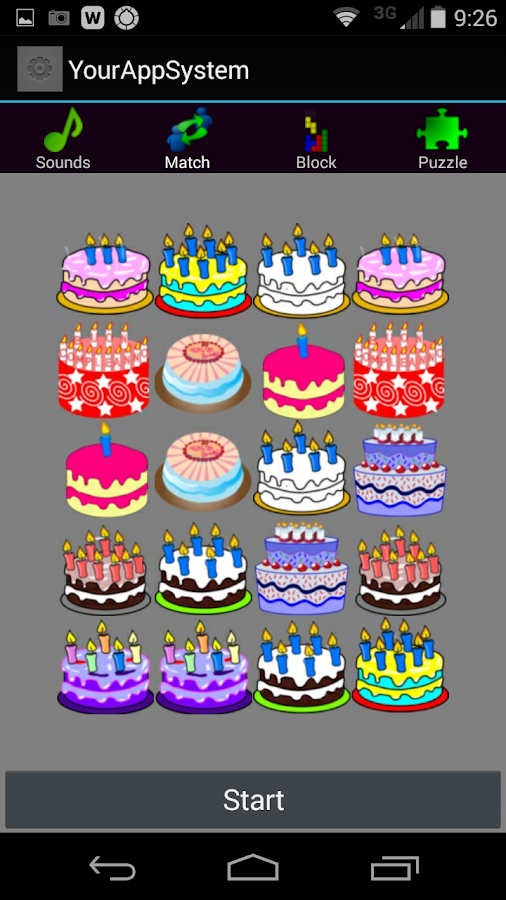
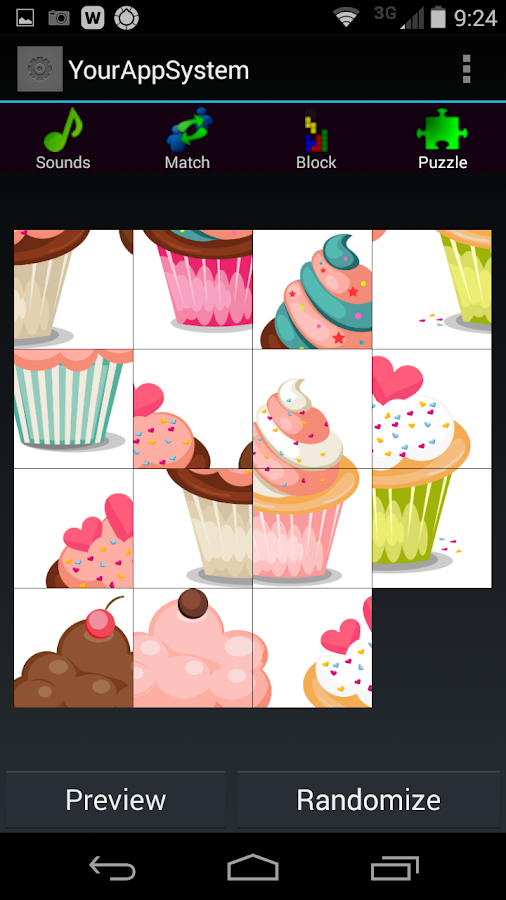
Cupcake Puzzles - Three levels of a cupcake puzzle – Easy, Hard, and a Very Hard Brain Buster.

Test your own skills on this cupcake puzzle. Tap on randomize, and the cupcake puzzle will shuffle. Then drag the squares into the correct spot. It’s harder than you think!

Cupcake Block Game – Fit the blocks together to cover up the cupcakes. Use the arrow keys to move the blocks in the correct position.

Fun Sounds – Four Fun Baking Sounds – Tap to hear what the cupcakes and the walking cake have to say!

Have fun playing the free cupcake and cake games. Not only are they fun they also encourage;

• Math Skills

• Recognition and Memory skills

• Reasoning and concept development

• Comparing, Classifying and Sorting

• Identifying similarities and differences among objects

• Problem solving

• Visual memory

• Matching

• Visual perception

• Spatial orientation

• Concentration and fine motor skills

Link to google play: https://play.google.com/store/apps/d...s.cupcakegames

Requires Android: 2.3.3 and up

I recommend you to download this new and awesome game.

Enjoy!!

Read More..

How to Connect to a FTP Server with an Android Device

You’ve probably wondered if there was a way to transfer files between your server and your mobile device on the road, where no computer is available.

Well, this will definitely solve that. You will learn how to transfer files between a FTP server and your Android device with a free app called: AndFTP.

Difficulty level: Easy

  1. Download and install the app from the Android Market.

  2. Open the app.

  3. The first time you launch the app, it will ask you to type in the information of the server you would like to connect to. Type in your server address, user name, password, and port (usually 21).

  4. Touch the connect button.

  5. It will now attempt a connection to the server. If the connection is successful, you will now see the files in your server, as well as the files on your mobile device.

  6. To transfer files, simply touch the file, touch “transfer” and it will move the remote selected fold

Hopefully its useful

Taken from http://blog.arvixe.com/
How to Connect to a FTP Server with an Android Device
Read More..

Intuitive home screen replacement and launcher with integrated viewers 3D UI

Claystone Launcher v1.0.3739 for Android 2.1 and higher
Claystone Launcher v1.0.3739

Claystone is designed to go far beyond what you typical phone experience offers. The basis of this enhanced experience are the Claystone Stacks.

Within these Stacks, you can quickly queue up and browse through a wealth of content, including: websites, videos, photos, RSS feeds, YouTube, and more.

*** New Claystone Theme ***

Blueberry is a theme designed for the Claystone Launcher that introduces a lighter, more colorful appearance through the inclusion of new background images, button styles, and more.

*** Additional Themes Coming Very Soon ***

Additional themes will be available on a regular schedule as we continue to expand, enhance, and customize your Claystone Launcher home screen experience.

Getting Started Guide (PDF Format)

- [url]http://claystoneinc.com/wp-content/uploads/2011/06/Claystone-User-Guide-1.0.pdf[/url]

We Welcome Your Feedback

- We welcome your comments, feedback, suggestions and requests for additional Claystone themes.

Share Claystone Easily

- Spread the word and let people know you use Claystone
- We have made it even easier to share Claystone with the latest update
- Use the convenient Share Claystone button on the Options Menu to share Claystone with your friends.
- You can also conveniently rate Claystone and send the Claystone Team a feedback email from Claystone preferences.

Innovative Navigation

Navigating these stacks is just as easy as other smart phone interfaces. We’ve added a touch of 3D as a visual cue to help you easily navigate the stacks.

Claystone’s refined navigation system allows you to organize and manage applications, media, and documents more efficiently than ever.

Customization and Consistency

Claystone let’s you customize your widgets and Launchbar, add shortcuts, create folders, organize your apps and documents, create website shortcuts all within Claystone’s consistent unified interface.

Enhanced App Management

Claystone integrates all your favorite apps, and lets you browse through them while viewing videos, websites, photos, and other media for a more consistent experience.

Apps are organized in an intelligent manner, ensuring you don’t have to look very far to access them at any time.

Dynamic Content Handling

With Claystone, your favorite websites, photos, and videos are all presented amongst one another, standing side-by-side as you browse through them.

This erases the dependence on starting a separate app for each content type, permitting you to enjoy them all – quickly and efficiently – with incredible convenience.

Technical Support

- [url]http://claystoneinc.com/support/[/url]

Minimum Requirements

- Android smart phone or tablet
- Android 2.1 and higher
- OpenGL 1.1 and higher
- Normal screen size or higher
- Medium screen density (160 mdpi) or higher

[u]More Info:[/u]
[code]https://market.android.com/details?id=com.claystoneinc[/code]


Download :
Claystone Launcher v1.0.3739

Mirror:
http://www.filefat.com/wae89ci757qt
http://www.multiupload.com/8XX5VNIPT2
Read More..

Forging Ahead With Change

As the school year comes to an end at New Milford High School, I can’t help but begin to think about sustaining the many changes that have taken place over the past few years as well as identifying other areas where change is needed.  My school is a shell of what it once was when one looks at how far we have come in terms of effectively integrating technology, re-envisioning learning spaces, and providing a foundation for a more relevant and meaningful learning experience for all of our students.  


Image credit: http://www.flickr.com/photos/plugusin/4122632440/in/set-72157625087347140/

Below is just a quick list of some of the many changes that have been successfully initiated and sustained over the past three years:
  • Transition to a Bring Your Own Device School (BYOD)
  • Creation of the Academies at NMHS
  • Independent OpenCourseWare Study (IOCS) option for students
  • Annual Edscape Conference to provide relevant professional development
  • Routine use and integration of social media for communications, public relations, branding, professional growth, and student learning

Together we have the power to improve all of our schools and mold them in ways to maximize the potential of our students, teachers, and administrators.  It is time to realize that social media, technology, and the change process are not the enemy. Once you get past this, you will quickly discover your own niche as a change agent and it is here that you can receive support and guidance to make any initiative successful. When moving to initiate sustainable change that will cultivate innovation acquire necessary resources, provide support (training, feedback, advice), empower educators through a certain level of autonomy, communicate effectively, and implement a shared decision-making practice.

In collaboration with my staff and the support of District leadership, my efforts have laid the foundation for an innovative teaching and learning culture that focuses on preparing all students for success.  We have learned to give up control, view failure as not always a bad thing as long as we learn from our mistakes, to be flexible, provide adequate support, and take calculated risks if we are to truly innovate.  To this end, teachers and students are now routinely utilizing social media and other various Web 2.0 tools on a routine basis to enhance and promote essential skill sets such as communication, collaboration, media literacy, creativity, critical thinking, problem-solving, global awareness, and technological proficiency.  It is not uncommon now for classes to be Skyping with students in other countries, using Twitter as a learning tool, constructing QR codes for artwork, blogging, or creating multimedia projects using a variety of interactive web tools that are blocked in many schools across the country.  

One of our most successful initiatives has been the establishment of a Bring Your Own Device (BYOD) program mentioned briefly above where we are harnessing the power of student-owned devices to increase engagement.  Instead of viewing student-owned technology as a hindrance, it is now wholeheartedly embraced as a mobile learning tool. Teachers have the students text in their answers on their cell phones using web programs such as Poll Everywhere, conduct research on the Internet, take notes using Evernote, or organize their assignments.  Students can also opt to bring their personal computing devices (laptops, tablets, iPod Touches) to use in school and class.

What might separate us from other schools where change has not taken hold is that we, as a school community, have decided to forge ahead no matter what mandates are thrown at us at the state and federal levels.  We needed to take a hard look at, and seize upon numerous areas of opportunity, to create a better school for our students that focused on the whole child using their interests and passions as catalysts for learning.  The change process never sleeps.  During the summer months my administrative team and I will continue to work with all stakeholders to forge ahead by doing what we have done for the last three years and looking for solutions to problems instead of excuses.  This might be the single most important element of a successful change initiative.  That and being digitally resilient. 

What do you plan to change this next year and why?

Read More..

Blog Archive

Powered by Blogger.